Before you start
Create or open a map with the intended subject address.
Follow along
Step 1 of 4Open Property
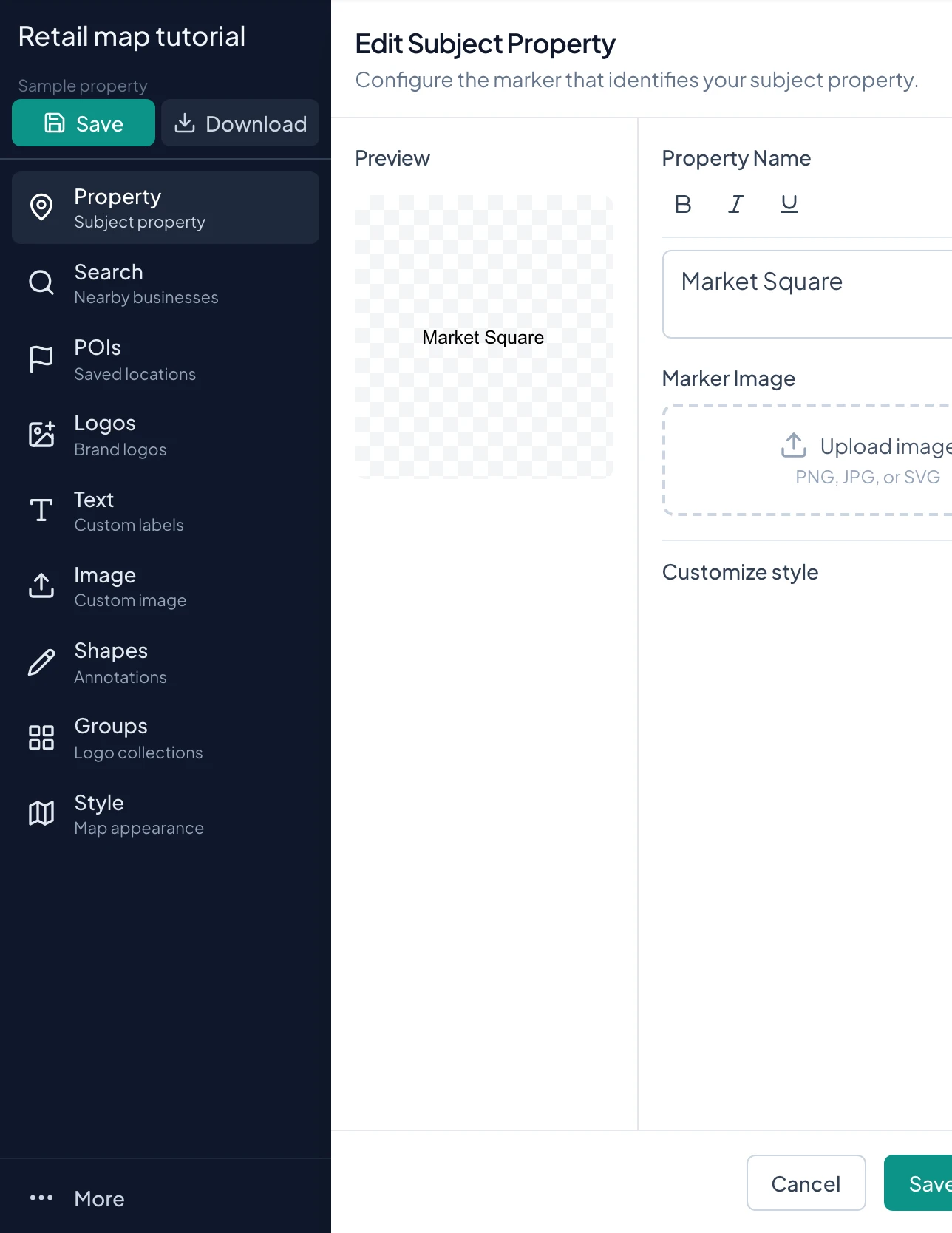
Click Property in the editor sidebar. The panel edits the subject marker and its label.
How-to 1
Understand the address, map title, and property label
The subject address establishes the property location when you create the map. The map title identifies the saved project in Dashboard. The property label is the text displayed with the subject marker. These can serve different purposes: a project title might include a date or campaign name, while the visible label stays short.
Changing the title or label does not search for a new address. If you started from the wrong property, correct the location in the new-map setup before investing time in the composition.
How-to 2
Choose a marker during new-map setup
- 1
Select an address
Click New Map, search for the property, and select the correct autocomplete result. Read the chosen address before setting the marker.
- 2
Use a preset
Choose Use Marker and select one of the displayed pins, stars, or geometric shapes. Pick a treatment that stands out against the base style you intend to use. A small marker is often clearer than a large image on a wide neighborhood view.
- 3
Use branding or a name
Use the company-logo option when a profile logo exists, upload your own image, or choose Property Name. For the name treatment, enter a meaningful property name and review the preview before Continue.
How-to 3
Change the subject image in an existing map
- 1
Open the Property panel
In the editor sidebar, click Property. The panel shows a preview beside the label and image controls. These settings affect the subject marker, not all logos on the map.
- 2
Remove the current image if replacing it
Use the remove control on the selected image to reveal the replacement options. Use profile logo appears when a logo is available in your account. Upload image lets you choose a different file.
- 3
Check a white or transparent logo
Inspect the preview background and lettering. The editor can display a dark background for light artwork. Choose container colors that keep it readable rather than assuming a transparent file will work against every base map.
- 4
Apply the replacement
Click Save Changes. Check the marker on the actual map and confirm it does not cover the property or key nearby context. Reopen Property if its appearance still needs adjustment.
How-to 4
Edit the label and its formatting
- 1
Change the displayed name
Edit the property text in the Property panel. Keep it short enough for the map scale. A center name or SUBJECT PROPERTY can be clearer than repeating the full street address inside the marker.
- 2
Set text appearance
Use the text controls and expand Customize style for additional options. Adjust font, size, color, and the available formatting controls while watching the preview. Do not rely on font size alone if the container is covering nearby roads.
- 3
Set the container
Adjust fill, border, their opacity, and padding. An opaque fill helps text over satellite imagery. Transparent fill reveals more map detail. For a visible border, use both a nonzero width and a visible border opacity.
- 4
Save and inspect at final scale
Click Save Changes and look at the subject in context. If you changed the property label after setting up an export, inspect the export preview again before downloading.
How-to 5
Position the subject without losing context
- 1
Frame the site
Pan or zoom until the property and its immediate roads are visible. Use More, then Center on Property whenever you need to return to the saved subject location.
- 2
Arrange the displayed marker
Drag the displayed subject marker to a clear position and use its resize control as needed. If you use a leader line, verify its endpoint separately from the marker appearance. The marker should communicate which site is being discussed.
- 3
Keep secondary details separate
Put availability, access notes, or a long description in separate Text overlays. This lets the subject label stay recognizable while the other annotations can be moved independently.
How-to 6
Worked example and final checks
For Market Square, use a compact pin or brokerage image for the subject and a separate label reading AVAILABLE 2,400 SF. Place the availability text in open space rather than expanding the subject marker to hold all the deal information.
Before saving, check the subject address, map title, visible property name, image contrast, and line endpoint. If the property seems to have disappeared, recenter first, then inspect its image and container opacity. Reopen Property to revise the presentation; do not assume changing its name changed its location.
Check your result
The marker and property name identify the intended site without covering key roads or tenant labels.
Tips and troubleshooting
- Changing a label is not an address search. Confirm the subject address before building out the map.
Read the quick walkthrough as text
- Open Property. Click Property in the editor sidebar. The panel edits the subject marker and its label.
- Choose the marker. Keep the existing marker or replace its image. When no image is selected, use Use profile logo if available or Upload image. Preset markers are chosen in the new-map setup. Check the preview against your base map.
- Edit the property name. Update the label. Expand Customize style for additional text and container controls.
- Apply and position. Click Save Changes. Drag the marker into position as needed and verify its location. Use More, then Center on Property to return to the saved subject location.
Explore the retail map software overview for the full workflow.