Before you start
Have at least one image ready, or place compatible business and image overlays on your map.
Follow along
Step 1 of 5Start a group
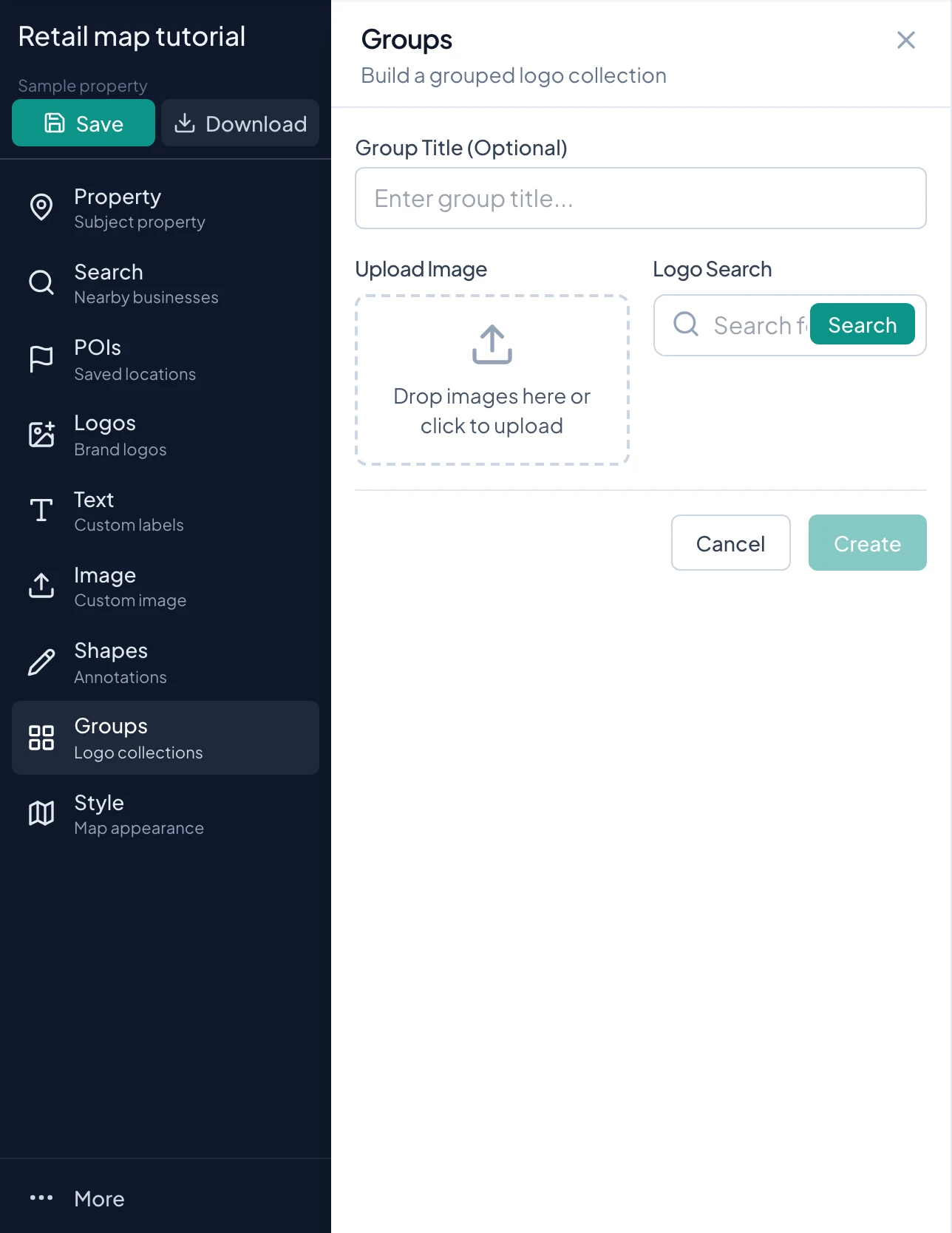
Open Groups. Search or upload an image or logo. Add at least one item before creating the group.
How-to 1
Decide what belongs in one group
A group is a single container holding a grid of images or tenant logos. Use it to show the tenants at one shopping center or a deliberate category such as Anchor Tenants. The container moves and resizes as one overlay.
Only compatible business, image, and group overlays participate in drag-to-group. Standalone text and shapes remain separate. A roster container also does not prove that every listed tenant shares the same exact entrance or coordinate.
How-to 2
Create a group from the Groups panel
- 1
Open Groups
Click Groups in the sidebar. Enter a descriptive group title if useful. The initial panel provides image upload and logo search. Create remains disabled until at least one item has been added.
- 2
Add an uploaded item
Use Upload Image to choose your file. Review the image in the collection. Add each required tenant deliberately instead of assuming a file name or a recognizable symbol confirms the tenant identity.
- 3
Find another logo
Use Logo Search to search for the intended company and review the available artwork. Add the matching item to the collection. If artwork is unsuitable, use an uploaded image you can verify.
- 4
Review the contents
Inspect every item before creating the group. Remove unwanted items using their remove controls. Keep the title and contents consistent so a heading such as Anchor Tenants does not include unrelated businesses.
How-to 3
Set columns, spacing, and group width
- 1
Choose Columns
Use Auto to let the layout adapt to the item count, or select one through six columns. A fixed count is useful when you want a specific roster arrangement. A high column count can make each logo too small.
- 2
Adjust Spacing
Choose None, S, M, or L. Increase the spacing when adjacent logos visually merge; decrease it when empty gaps dominate. Check the actual artwork, since different file margins can make spacing look uneven.
- 3
Set Group width
Use the Group width slider, from 120 to 600px, while reviewing the preview. Width and columns work together: if adding a column makes lettering unreadable, widen the group or use fewer columns.
- 4
Inspect the balance
Compare the most detailed logo with the simplest one. If a large collection cannot be read at the final map scale, split it into two meaningful groups instead of making one container cover the property.
How-to 4
Style the heading and container
- 1
Enable the Title switch
In the populated group editor, turn on Title to display a heading. Enter a short name such as Market Square Tenants. Turn the switch off when a heading would repeat information already clear on the map.
- 2
Format the heading
Use the available title font, size, weight, color, and alignment controls. Make it distinct from the tenant artwork while leaving enough room for the grid below. A short heading usually survives small exports better.
- 3
Set Container Style
Choose the backing, border, padding, and opacity controls. A simple opaque background can make mixed logo colors readable. Check that the title and logos remain visible against the same container.
- 4
Apply the group
Use Create Group for a new group or Save Changes while editing an existing one. Position the group on the map and inspect it at the intended presentation scale.
How-to 5
Group artwork that is already on the map
- 1
Drag compatible artwork together
Drag a business, image, or existing group over compatible artwork. Wait for Drop to group to appear, then release. If the indicator does not appear, check the overlay types and whether you are actually over the target.
- 2
Check the merged roster
Open Edit style on the resulting group. Review the item count, title, columns, and spacing. A merged collection may need a different layout from either original overlay.
- 3
Add another tenant
Drag another compatible item into the group, or add an item through the group editor. Inspect the resulting columns and width before continuing with the rest of the composition.
How-to 6
Edit, ungroup, or remove the collection
- 1
Edit one group
Reveal its toolbar and choose Edit style. Remove or add items, revise the title, or change the container. Apply the edits and check the complete collection on the map.
- 2
Ungroup when items need independent placement
Use the group's Ungroup control. Inspect the released artwork and arrange it individually. Recheck locations and leader lines rather than assuming a roster layout already represents separate storefront positions.
- 3
Delete only when the roster is unwanted
Use Delete to remove the group overlay. Ungroup and Delete serve different purposes: choose Ungroup when you want to keep working with the individual items. Save after checking the final result.
How-to 7
Worked example: anchors and smaller shops
For a center with two prominent anchors and six smaller tenants, make an Anchor Tenants group with two columns. Make a separate Shops and Dining group with three columns. Use a matching background and border, but let each group have the width it needs.
Place the two groups in clear space near the center. Inspect the headings, the smallest logo lettering, and any connecting lines in the export preview. If the grid is still crowded, shorten the roster or use a larger presentation area rather than covering the site with labels.
Check your result
The group has a readable title and a clear logo grid, and moves as one overlay.
Tips and troubleshooting
- Use several smaller groups when a single tenant roster becomes too dense to read.
Read the quick walkthrough as text
- Start a group. Open Groups. Search or upload an image or logo. Add at least one item before creating the group.
- Set the title and layout. After adding an item, use the Title switch to show a heading if needed. Adjust columns and item spacing, then review the preview.
- Create and position. Create the group, then drag and resize the container on the map.
- Merge existing artwork. You can also drag a business, image, or group onto compatible artwork. Wait for Drop to group before releasing. Text and shapes do not merge into logo groups.
- Review group contents. Open the group editor to adjust its items and styling. Use the group controls to ungroup when individual positioning is needed.
Explore the retail map software overview for the full workflow.