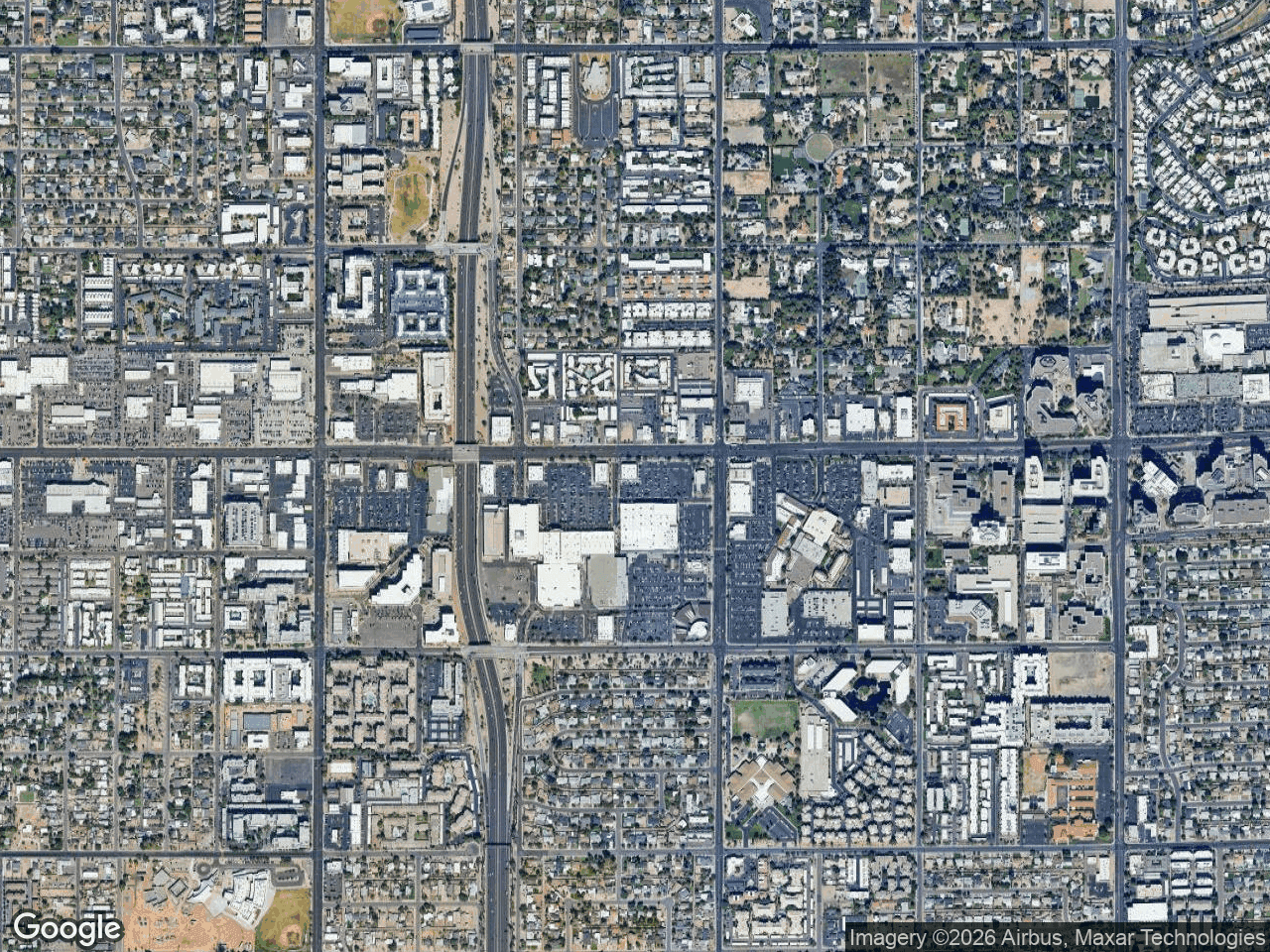


Nearby search in CRE Retail Maps returns business results in the visible map area. You review those results, select the businesses relevant to the assignment, and verify the location and artwork before placement. Coverage and artwork matches are not guaranteed, and placement remains a user decision. The retail map software overview explains where this search fits in the broader workflow.
Why Brokers Struggle to Find Nearby Businesses on a Property Map
A manual workflow may involve searching several categories, recording candidate locations, sourcing artwork, and assembling the graphic. Nearby search keeps discovery and selection inside the map editor, but the user remains responsible for checking business status, relevance, location, and artwork.
How to Search for Tenants Near Your Property
The search area is based on the visible map extent. Pan and zoom to the area you want to review, then use this workflow. For editor setup, see the step-by-step guides.
Step-by-Step Workflow
- Log in and set your subject property. Open CRE Retail Maps, enter the address or nearest recognized place, and confirm the subject marker is on the reviewed parcel.
- Open Search. Use the search control to browse business categories or enter a keyword.
- Choose a category or keyword. Examples include restaurants, banks, grocery stores, fitness centers, gas stations, pharmacies, and coffee shops.
- Run the search. Review the returned candidates in the visible area. The result set may be incomplete or stale, so do not describe it as every matching business.
- Review and select results. Scroll through the discovered businesses. Check the boxes next to the tenants you want to include on your map. Uncheck any that are irrelevant, permanently closed, or too far from the property to matter for your purposes.
- Review artwork and place selected businesses. Search brand-artwork candidates and check the proposed match for each selection. Confirm the business name and location before placing it.
- Organize with drag-to-group containers. Group related logos together into labeled clusters - such as "Dining," "Financial Services," or "Fitness & Wellness" - so prospects can quickly digest the retail landscape around your property.
- Choose your map style and export. Choose among Default, Subtle, Light, Dark, Retro, Silver, Night, Satellite, and Terrain. Pro exports include 2D PNG/JPG up to 8,000 pixels, 3D images up to 4,096 pixels, and five PDF layouts.
What Nearby Search Changes
Nearby search changes where candidate discovery happens. It does not remove the need for research or quality control.
Measure Your Own Workflow
Do not assume a fixed time saving. If production time matters, measure the same brief with the old and new process, including research, artwork review, revisions, and final export QA.
Artwork Review and Brand Consistency
The artwork search offers searchable candidates. Similar business names, franchises, rebrands, and stale records make review essential; users must verify that each candidate is appropriate before publishing.
Workflow tip: When preparing an OM for a pad site or outparcel, search restaurant and gas-station categories, review the results, and select only verified businesses relevant to the assignment. Any claim about traffic or visit frequency needs a separate current source.
Business Categories Available in Nearby Search
Nearby search supports categories commonly used in commercial real estate maps:
- Restaurants (fast food, fast casual, full service)
- Banks and financial services
- Grocery stores and supermarkets
- Fitness centers and gyms
- Coffee shops and cafes
- Pharmacies and drug stores
- Gas stations and convenience stores
- Retail big boxes and anchor tenants
- Medical and healthcare offices
- Hotels and hospitality
Results come from business-location data, but operating status and location details can change. Verify them against current, authoritative sources before distribution.
When to Use Nearby Search in CRE Marketing
Nearby search can support several CRE marketing workflows when its results are reviewed.
New Listing Packages
A listing package can use a reviewed tenant map to show selected nearby-business and co-tenancy context. The map does not establish foot traffic, consumer draw, or business performance; cite separate evidence for those claims.
Broker Opinion of Value (BOV) Presentations
A BOV can use a map to show selected nearby businesses. Keep valuation conclusions tied to the financial analysis, lease comparables, and other appropriate evidence rather than the map alone.
Site Selection Tours
When touring prospects through multiple properties, a consistently scoped tenant map for each site can help them compare verified location context.
Build and Review a Nearby-Business Map
CRE Retail Maps lets you search the visible area, select nearby business results, review artwork candidates, and arrange the chosen items on a styled map. The Free plan supports building and previewing up to three maps; downloads require Pro.
CRE Retail Maps Editorial Team
VerifiedCRE Software & Industry Analysis
The CRE Retail Maps editorial team produces in-depth analysis of commercial real estate technology, retail market trends, and broker workflows. Our content is reviewed by retail brokers and industry practitioners with decades of combined experience covering grocery-anchored, power center, and lifestyle retail across major US markets.