Brand artwork can make selected nearby businesses easier to recognize on a retail map. It does not establish the quality or performance of the trade area, and each business, location, and artwork match requires review.
This guide walks through the full workflow for adding brand logos to a commercial property map using CRE Retail Maps, from searching the logo library to exporting a polished final product.
Step 1: Set Your Map Location and Style
Before placing any logos, get your base map right. In CRE Retail Maps, enter your property address and the map centers on your location. Then choose from nine map styles - Default, Subtle, Light, Dark, Retro, Silver, Night, Satellite, or Terrain - depending on the look you're going for.
A few practical tips on style selection:
- Light or silver works best for most offering memorandums. The muted tones let the brand logos pop without competing for attention.
- Satellite is ideal when you want to show the physical context -- parking lots, building footprints, adjacent pad sites.
- Dark or night styles create a striking visual for pitch decks and presentations where you want the map to feel modern.
You can also toggle label visibility at this stage. Turning off business labels prevents the map's default business names from overlapping with the logos you're about to place.
Step 2: Search and Place Brand Logos
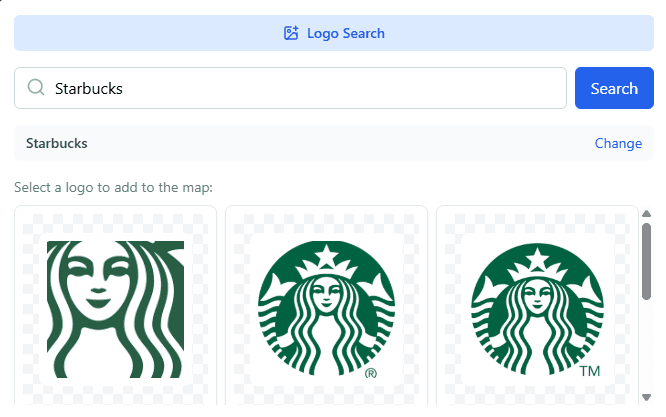
CRE Retail Maps includes searchable brand-artwork candidates. To find a specific brand, type its name into the search bar, inspect the returned artwork, verify the match, and place the appropriate mark at the intended display position.
For broader discovery, use nearby-business search. Select a category - restaurants, banks, fitness centers, coffee shops, grocery stores - and search the visible map area. Review the returned businesses, choose the ones relevant to the property story, and verify any suggested artwork before adding them.
After placement, review the full composition. Remove businesses that do not support the narrative, add any important omissions, and verify each location. Every placed artwork item is draggable for layout refinement.
Step 3: Connect Logos with Leader Lines
When you place a lot of logos directly on the map, the result gets crowded fast. Leader lines solve this problem. A leader line is a thin line that connects displayed artwork to a reviewed map anchor.
Businesses added through Nearby Places retain their returned coordinate as a line anchor when the logo is moved. Artwork added through Brand Logo is a generic image overlay, so toggle its line manually and drag the anchor to a location you have verified. You can adjust line style and appearance to fit the composition.
Leader lines are what separate a professional retail map from an amateur one. They keep the map readable even when 30+ brands are represented, because the logos can be spread out or grouped without losing geographic accuracy.
Step 4: Organize Logos into Containers
For maps with many logos, drag-to-group containers add a layer of organization that clients and investors appreciate. A container is a labeled group that holds multiple logos in a clean grid layout.
Common container groupings include:
- National Retailers - - Target, Walmart, Home Depot, Best Buy
- Restaurants & Dining - - Chipotle, Starbucks, Chick-fil-A, Panera
- Banking & Financial - - Chase, Wells Fargo, Bank of America
- Grocery & Pharmacy - - Whole Foods, CVS, Walgreens, Kroger
- Fitness & Health - - Planet Fitness, Orangetheory, Urgent Care
In CRE Retail Maps, you create a container, give it a title, and drag logos into it. The logos arrange themselves in a grid. Grouping replaces the members' individual map placement and does not preserve a separate leader line for every logo; leave location-specific business overlays ungrouped when each one needs its own geographic anchor.
This technique is especially effective for maps that will be printed or included in PDFs, where the viewer needs to scan the map quickly and understand the tenant mix at a glance.
Step 5: Fine-Tune the Visual Details
With your logos placed and organized, take a pass through the visual details:
- Highway highlighting: If major highways or arterials are key to the property's accessibility story, use highway highlighting to make them stand out. You can customize the color, weight, and opacity of highlighted routes.
- Color swatches: CRE Retail Maps offers 12 preset color swatches plus a custom color picker. Match your map's accent colors to the brokerage brand or the property's marketing materials.
- Label controls: Toggle street names, highway labels, area names, transit stops, and water feature labels on or off depending on what's relevant to the property story.
These details are subtle, but they're the difference between a map that looks templated and one that looks custom-designed.
Step 6: Export Your Finished Map
CRE Retail Maps Pro offers image and PDF export paths:
- Five PDF layouts - useful for offering memorandums, lease proposals, and printed materials, with profile and property fields.
- 2D PNG or JPG export up to 8000 pixels - useful for presentations, websites, social media, and custom document layouts.
- 3D image export up to 4096 pixels - available for photorealistic 3D views.
The Free tier supports building and previewing up to three maps; downloading requires Pro.
For common overlay edits, undo/redo can step backward through recent changes during the current editor session.
Save Locations for Future Maps
One final workflow tip: Pro users can save locations to the POI database and reuse them across maps. This is useful for brokers who manage multiple listings in the same submarket and want a curated starting point for recurring locations.
Avoid These Mistakes
The difference between a polished retail map and one that looks amateur usually comes down to four predictable errors. Here's what to watch for:
Mistake 1: Placing every logo directly on the map
The instinct when you have 30 nearby tenants is to place all 30 directly on the spot they occupy. The result is a cluttered mess where logos overlap, labels fight each other for space, and the subject property gets lost in the crowd.
Fix: pick the 15-25 tenants that tell the strongest story (anchors, complementary retailers, traffic generators). Use leader lines to pull logos to the edge of the frame, and use containers to group similar tenants (Dining, Banks, Services). The subject property should always have visual priority.
Mistake 2: Inconsistent logo sizing
When logos are placed manually, it's easy to end up with a Target logo 2x larger than a Starbucks one, or a Chase logo smaller than a local coffee shop. The result looks ad hoc and signals to the prospect that the map was made in a hurry.
Fix: establish a size hierarchy before you start placing. Set anchor tenants at the largest size, inline retailers at a medium size, and service tenants at the smallest. CRE Retail Maps preserves each image's aspect ratio, but you set the visual hierarchy and should resize similar businesses consistently.
Mistake 3: No leader lines with spread-out logos
Logos placed at the edges of a map or in a clean legend zone need leader lines connecting them back to reviewed map anchors. Without those connections, logos look decorative rather than informative - the viewer cannot tell which verified place the artwork is intended to reference.
Fix: the moment you move a location-aware business logo away from its reviewed coordinates, keep its leader line visible. For a generic Brand Logo or image overlay, toggle a line manually and drag the anchor to the verified location. Match the line color to an accent that does not clash with the base map.
Mistake 4: Forgetting the subject property visual hierarchy
The subject property is the point of the map, but on crowded retail maps it gets buried under the logos of every nearby brand. A prospect glancing at the map should identify the subject property within 2 seconds.
Fix: use a distinctive marker - a bold red outlined box with a "SUBJECT PROPERTY" label is standard. Make sure it's placed above other overlays (higher z-index) so logos never cover it. If the map has a white or light background, the red marker pops; if the map is dark, switch to a yellow or teal outline.
Mistake 5: Using unreviewed or low-quality artwork
PNG logos ripped from a Google image search are the number-one tell of an amateur map. They're usually at the wrong aspect ratio, have white backgrounds when the brand uses transparent, or are low resolution so they pixelate in print.
Fix: search the built-in artwork candidates, inspect image quality and identity, and confirm the result matches the intended business. If it does not, choose another candidate or upload artwork you are authorized to use. A searchable result is not a guarantee of licensing or accuracy.
The Result
A well-built retail map with recognizable, reviewed brand artwork communicates surrounding retail context in a compact visual. A focused editor keeps artwork, leader lines, groups, styles, and export preparation in the same project.
Try the artwork search. Build and preview a map on the Free tier, review several artwork matches, and upgrade to Pro only when you need to download.
Related guides
- Retail map maker - The tool in detail
- All features - Artwork search, nearby businesses, and export
- Templates - Five PDF layouts
CRE Retail Maps Editorial Team
VerifiedCRE Software & Industry Analysis
The CRE Retail Maps editorial team produces in-depth analysis of commercial real estate technology, retail market trends, and broker workflows. Our content is reviewed by retail brokers and industry practitioners with decades of combined experience covering grocery-anchored, power center, and lifestyle retail across major US markets.